Use Mass Imports when you want to update data for multiple programs at once.
Supported data types: monthly returns, daily returns, quarterly returns, NAV.
Workflow
1. Navigate to the required import section
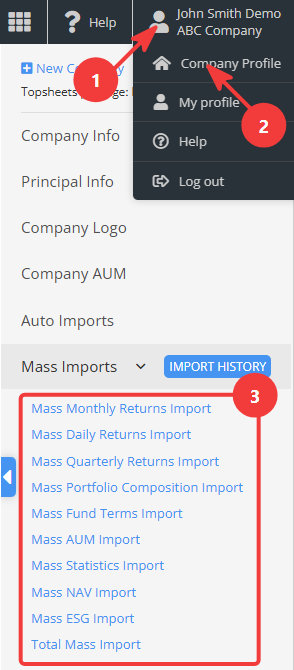
Go to Company Profile / Mass Imports to select the desired data type.
2. Prepare and upload an Excel file
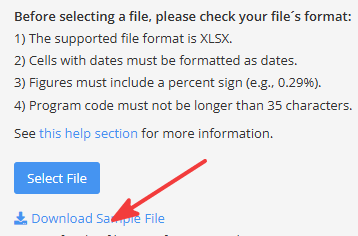
The file must contain valid program identifiers and retain the required structure and formatting. We recommend starting by downloading the sample file available on each mass import page.
See Creating Import file / Mass import file for more information.
3. Select the import options
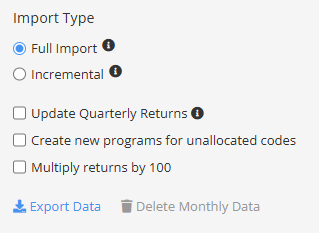
Choose the required import type and any additional options.
Import type
Choose between two import types:
- Full import – deletes records not included in the file.
- Incremental import – keeps records not included in the file.
Update related performance data
These options calculate and update related performance data from the imported source data. When importing daily returns, you can update monthly and quarterly returns. When importing monthly returns, you can update quarterly returns.
Calculated quarterly returns use the program's Calculation Method (Compounded or Non Compounded). Be careful when using these features, as calculated returns will overwrite existing values.
Create new programs for unallocated codes
Mass imports can optionally create new programs for identifiers that do not yet exist in the system.
Multiply returns by 100
Multiplies all imported return values by 100, for example converting 0.05 to 5.
4. Validate and import the data
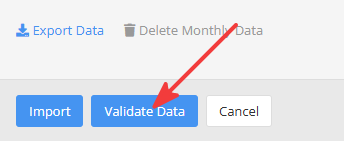
Use Validate Data to check the uploaded file before running the import.
This feature makes it easier to identify and correct issues that could prevent the file from being imported successfully.
Click Import to start the import process.