
You can display your company logo on fund factsheets or use a different logo for a specific program.
Choose the logo you want to display
Company logo
Use this option if you want the same logo to appear across all programs.
Program-specific logo
Use this option if you want to display a different logo for a particular program.
Note: Program-specific logos may need to be enabled for your account and are available on eligible plans.
Add or change your company logo
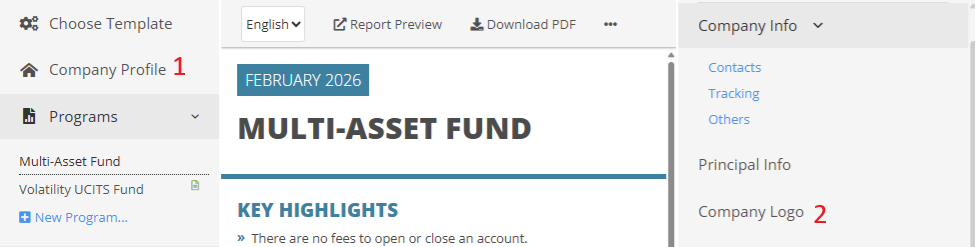
- Open Company Profile.
- Go to Company Logo.
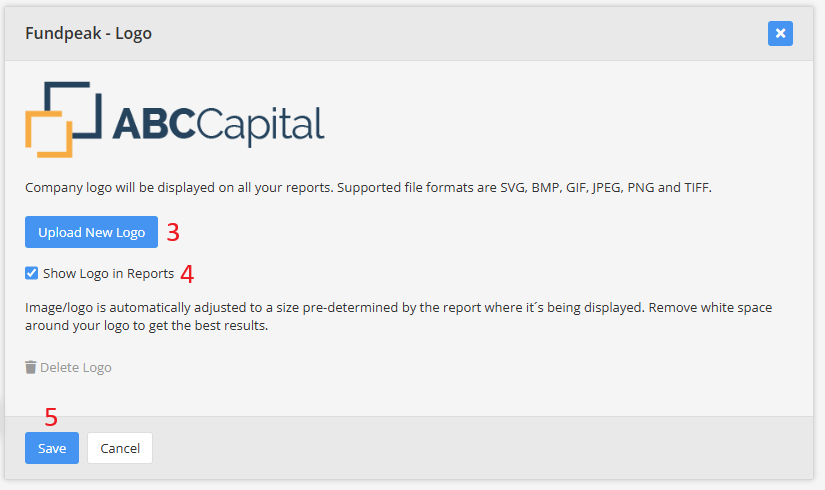
- Upload your logo.
- Make sure the option to display the logo on factsheets is enabled.
- Click Save.
Your company logo will be used on factsheets that are configured to display the company logo.
Add a program-specific logo
Use a program-specific logo when a particular fund or program should display a different brand or logo from your company logo.
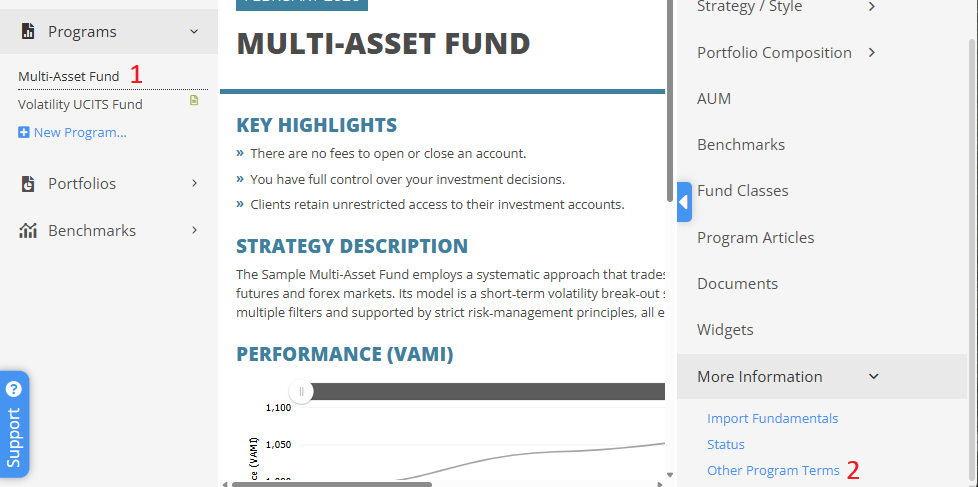
- Open the relevant program.
- Open Other Program Terms / More Information.
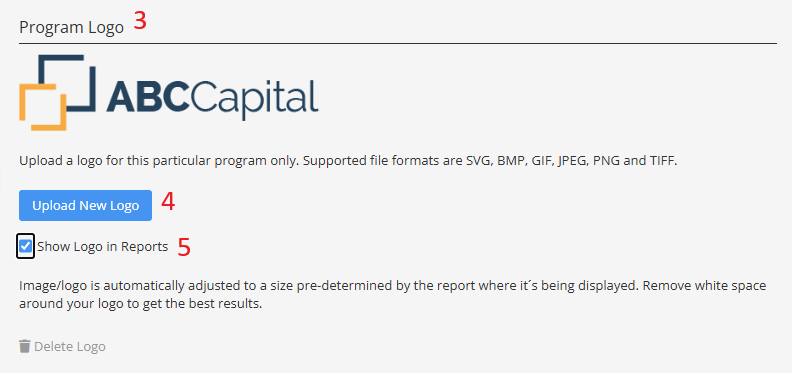
- Find the Program Logo section.
- Upload the logo you want to use.
- Enable the option to display the program logo.
- Save your changes.
The program-specific logo will be displayed instead of the company logo where the factsheet template is configured to use it.
Logo appears too large or too small
The visible size of a logo can also depend on the amount of empty space around the logo inside the image file.
For best results:
- Crop unnecessary whitespace around the logo before uploading it.
- Use a high-quality image with a transparent background where appropriate.
- If you use a custom factsheet template, the displayed logo dimensions can be adjusted in the template configuration.