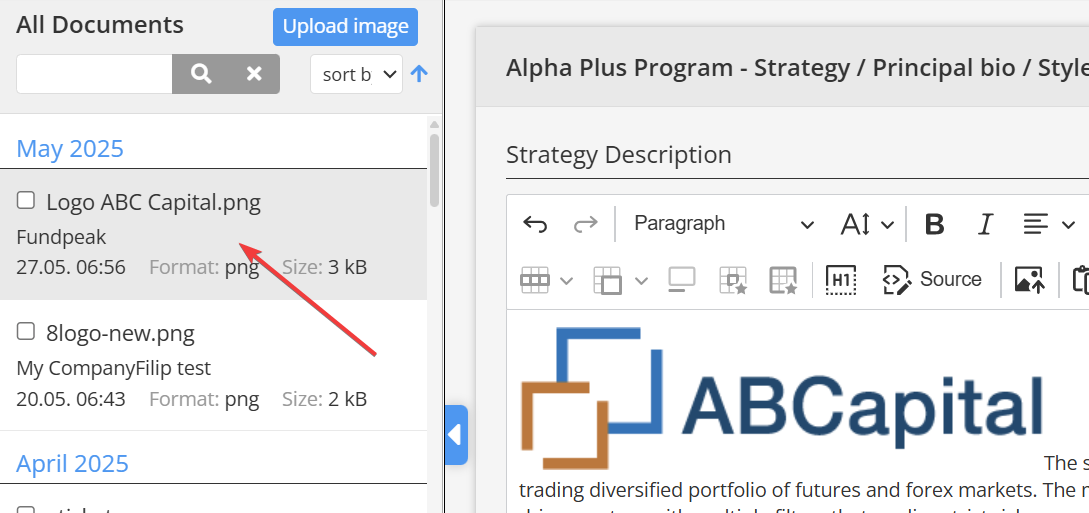
Images can be added to any text section (such as strategy description, key highlights, custom articles etc.) using the text editor.
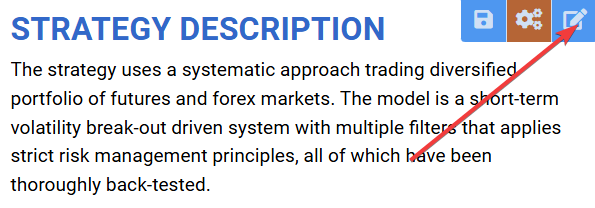
1. Start editing a text section
Click the “Edit program content” icon to begin editing the desired section.
2. Open the documents module
In the text editor toolbar, click the gallery icon to access your documents.

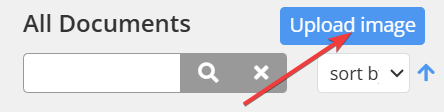
3. Upload image
Use the Upload button above the middle frame to add a new image. If your image is already present among your documents you can skip this step.
4. Select the image
Click the uploaded image in the middle frame to insert it into the article.