
There is a large database of benchmarks (including ETFs, Mutual Funds or Stocks) available in Topsheets. If there is a benchmark missing, you can easily create your own custom benchmark (provided you have its performance data).
Benchmarks´ performance or their composition can be displayed in most of our tables and charts. There can be as many benchmarks in your investment performance report as you like.
Adding benchmarks from our database
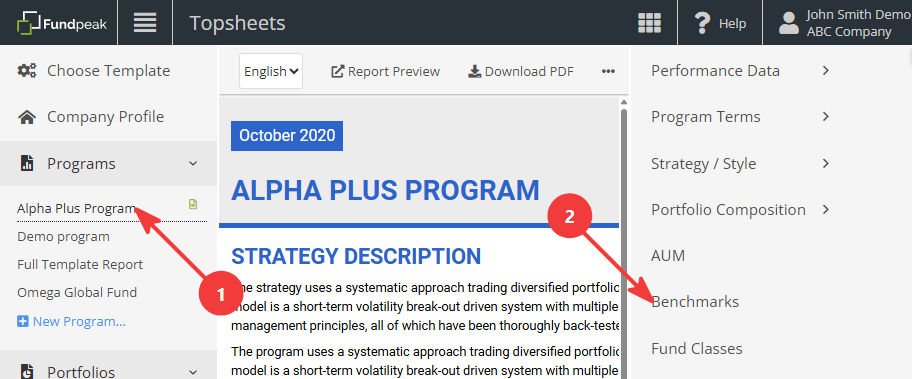
- Select a program in the left-hand panel.
- Click Benchmarks in the right-hand panel.
- Choose one of the benchmarks listed under Main Benchmarks, or open the All Benchmarks tab to search for additional benchmarks.
- To add more than one benchmark, click the Add Benchmark button.
- Click Save.
Adding custom benchmarks
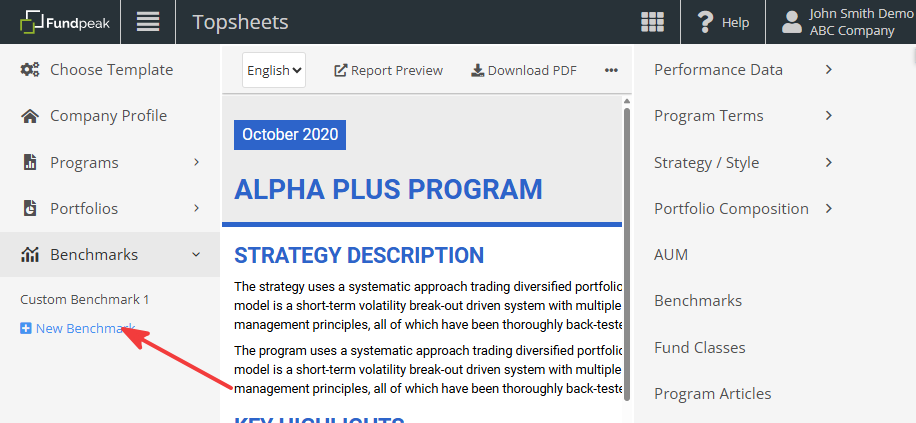
- Click New Benchmark in the left-hand panel.
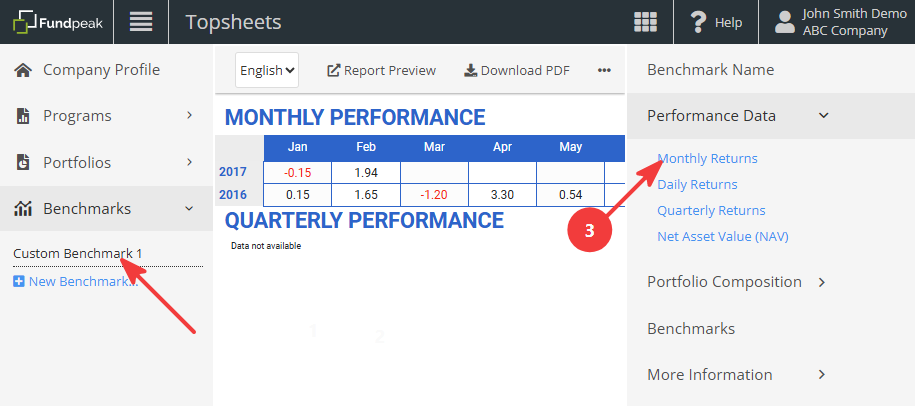
- Enter a name for your new benchmark, then click Save.
- Update the benchmark performance as shown below, or as described in Update or import your data.
- Follow steps 1 and 2 above from Adding benchmarks from our database.
- Custom benchmarks can be selected under the Main Benchmarks tab.
Maximum number of benchmarks being displayed
Any chart has an option to limit number of benchmarks being displayed. Please see Delete benchmarks for more information.